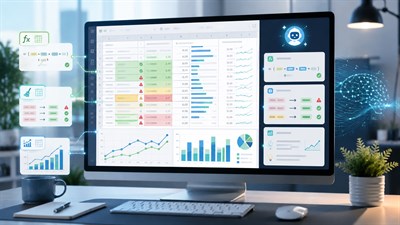
Spreadsheets are still the invisible operating system of business. Budgets, forecasts, KPI dashboards, cohort reports, payroll calculations, inventory planning, and board reporting often flow through Excel or Google Sheets—sometimes even when a “real” BI stack exists. That’s not inherently bad. Spreadsheets are fast, flexible, and close to how humans think. The risk is that spreadsheets are also uniquely good at failing silently.
Now add AI. When people say they want to start using AI with spreadsheets, they usually mean: “Help me go faster.” Write formulas, clean messy exports, generate pivots, categorize items, build dashboards, explain what a workbook does, or automate recurring reporting. All of that is real value. But AI introduces a new class of failure: changes that look correct but subtly corrupt AI spreadsheets data integrity.
The problem is not that AI is “bad at math.” The problem is that spreadsheets are fragile systems where meaning is encoded in small, easy-to-miss details: an absolute reference, a range boundary, a hidden filter, a sheet-level naming convention, a mapping table with one duplicated key, a rounding rule agreed with finance, a time zone assumption, or a “blank means zero” convention. When AI touches that structure—especially by editing formulas or rearranging data—it can produce AI spreadsheet errors that don’t scream. They whisper. And you only hear them after decisions have been made.
Spreadsheets fail silently — and AI can amplify that risk.
This guide is not an Excel tutorial and not a tool roundup. It’s a practical, risk-aware playbook for getting AI benefits without losing trust in your numbers. The core principle is simple:
Automation without validation breaks trust in data.
Why Spreadsheets Are a Critical Data Integrity Risk Zone
In many organizations, spreadsheets are both a data store and a computation engine. That’s convenient, but it also means the spreadsheet is often the single place where “business truth” is produced. And it’s often produced by layering transformations and formulas on top of exports from other systems.
Here’s what makes spreadsheets uniquely vulnerable:
- Hidden state exists everywhere. Filters, hidden rows, merged cells, manual overrides, and formatting-based meaning (“red means exception”) can change interpretation without changing the raw values.
- Logic is implicit. A formula is code, but it’s rarely documented. Two adjacent columns can look similar while computing different things.
- Small edits have cascading effects. One broken reference or shifted range can affect hundreds of downstream cells.
- “Looks right” is a dangerous test. Most spreadsheet errors still yield plausible outputs—especially in finance and operations where variability is expected.
- Copy-paste culture is normal. People duplicate tabs, reuse models, and patch issues quickly. That’s speed—but it’s also technical debt.
AI is powerful in this environment because it can generate and modify “spreadsheet code” (formulas, transformations, scripts) quickly. But that’s also the risk: AI can create plausible logic that is subtly misaligned with your model’s intent.
Where AI Actually Helps With Spreadsheets
Used correctly, AI is a strong assistant for spreadsheet work. The key is to use it in places where it reduces effort without becoming the “editor of truth.” Think of AI as a drafting tool for logic, checks, documentation, and transformations that you still validate.
Use AI as an assistant, not as an editor of truth.
1) Drafting formulas (as suggestions, not direct edits)
AI is great at producing first-pass formulas when you provide the exact schema and the exact rule. For example:
- Transforming strings (extracting IDs, parsing dates, standardizing formats).
- Conditional logic (tiering, classification, exception flags).
- Lookups and joins (XLOOKUP / INDEX-MATCH patterns) as a starting point.
- Aggregation formulas (SUMIFS/COUNTIFS) with explicit criteria.
The benefit is speed. The risk is that AI may choose the wrong function, the wrong range boundary, or a convenient shortcut that breaks edge cases. So the rule is: let AI draft and you apply after validation.
2) Explaining existing calculations
One of the safest and most valuable uses of AI is reading and explaining formulas without changing them. For example:
- “Explain this formula in plain English and list its dependencies.”
- “What assumptions does this sheet appear to make about dates/currencies/taxes?”
- “Which input cells affect this KPI output?”
This improves maintainability and reduces “spreadsheet tribal knowledge.” It also forces you to articulate the model’s intent—which is a key integrity safeguard.
3) Cleaning and preparing data (with constraints)
AI can help design cleaning steps: trimming whitespace, normalizing naming, detecting duplicates, proposing validation rules, and suggesting transformations. It can also propose a structured plan: “First standardize headers, then normalize date formats, then validate keys, then check totals.”
But the safest pattern is: AI proposes the steps; you run them in a controlled workflow (Power Query, Sheets query, reproducible steps) and validate results with checks.
4) Generating checks, validations, and reconciliation logic
AI is especially useful for generating “defensive spreadsheet logic”:
- Reconciliation checks (sum of parts equals total, row counts match, subtotals match).
- Exception detectors (outliers, missing categories, sudden jumps).
- Validation rules (allowed ranges, allowed categories, required fields).
- Cross-sheet consistency checks (mapping tables used correctly).
In other words, AI can help you build the guardrails that protect integrity.
5) Creating documentation, SOPs, and change summaries
Spreadsheets often break because nobody remembers what changed. AI can help you produce short, consistent documentation:
- “What this model does” (purpose, inputs, outputs).
- “How to update it weekly/monthly.”
- “What not to touch.”
- “Critical cells and expected ranges.”
Where AI Breaks Data Integrity
Most integrity failures are not dramatic. They’re subtle. AI is prone to producing edits that are locally reasonable but globally wrong—because it optimizes for producing an answer, not for preserving your model’s intent across the entire workbook.
Example: AI rewrites a formula and breaks cross-sheet references.
1) Formula rewrites that change meaning
AI might “simplify” a formula, swap functions, or rewrite for readability. That sounds helpful—until you realize the logic changed. Common failure modes:
- Absolute vs relative references ($A$1 vs A1). One missing $ can quietly corrupt an entire copied column.
- Range boundary drift (A2:A1000 vs A2:A999). One row excluded or included can bias totals.
- Wrong lookup default (approximate match vs exact match). Some functions default in dangerous ways.
- Error handling that hides problems (IFERROR returning 0). This can mask missing keys and turn data quality issues into “valid-looking” numbers.
- Implicit type coercion (text numbers vs numeric). AI may propose fixes that change types inconsistently.
The result: outputs still look clean. Totals still exist. But the business meaning is off.
2) Reference and dependency breakage across sheets
Workbooks often rely on cross-sheet references: “Input” → “Mapping” → “Calc” → “Summary.” AI can break those dependencies by:
- Renaming sheets or columns without updating all references.
- Moving columns and relying on positional references in formulas or scripts.
- Creating new helper columns that are not included in downstream ranges.
- Replacing structured references with hard-coded ranges that don’t expand.
This is especially common when AI is asked to “clean up” or “restructure” a sheet. Restructuring is rarely safe without an explicit dependency map.
3) Rounding, precision, and financial logic drift
Finance models are filled with rounding decisions: currency conversions, tax rounding rules, percentage displays, and allocation logic. AI can introduce drift by:
- Rounding too early (rounding intermediate values rather than final outputs).
- Changing precision (2 decimals vs 4) and silently altering totals.
- Replacing a documented business rule with a generic math operation.
These errors can be small per row but huge in aggregate.
4) Sorting, filtering, and row/column rearrangements
AI-driven cleanup often involves sorting or reorganizing. The danger is when a sheet has columns that must stay aligned. Typical failure:
- AI sorts one column (or a subset range) instead of the full table range, misaligning data.
- AI removes “duplicates” without understanding that duplicates may be valid (same customer, multiple orders).
- AI filters out “blanks” that are meaningful (e.g., blanks represent “not applicable,” not missing).
Spreadsheets are extremely vulnerable to misalignment because the UI makes it easy to miss.
5) Replacing controlled inputs with generated assumptions
AI tends to fill gaps. If it sees missing categories, it may invent labels. If it sees inconsistent dates, it may “fix” them. If it sees a mismatch, it may choose the most plausible value. That behavior is useful in drafting—but dangerous in data integrity work.
Integrity requires the opposite instinct: do not invent data. Flag issues, don’t silently correct them.
To understand the broader “automation vs control” framing behind these failure modes, see: AI vs Spreadsheets: Where Automation Helps and Where It Breaks.
Prompting AI Without Letting It Touch Your Data
The safest way to use AI in spreadsheets is to separate thinking from editing. Your AI prompts should produce:
- Explanations (what exists now).
- Proposals (what to change).
- Risk analysis (what could break).
- Text outputs (draft formulas, scripts, checklists) that you apply manually after validation.
In practice, this means: do not ask AI to “fix the sheet.” Ask it to describe a fix and to provide a controlled plan.
The examples below are control prompts. They are not meant to replace judgment or automate decisions. Their purpose is to constrain AI behavior during specific workflow steps — helping structure information without introducing assumptions, ownership, or commitments.
Ask the AI to:
• explain formulas without editing them
• suggest logic, not apply changes
• describe risks before automation
• output changes as text, not actions
Prompt pattern 1: “Explain, then list dependencies”
You are reviewing a spreadsheet. Do not propose edits yet.
1) Explain what this formula does in plain English.
2) List every referenced range/sheet/cell.
3) Identify assumptions (date formats, currency, blank-handling, error-handling).
4) List 5 edge cases that could break it.
Formula:
[PASTE FORMULA HERE]
Prompt pattern 2: “Draft a formula, but also draft tests”
Draft an Excel/Google Sheets formula for the following rule. Output only the formula as text.
Then provide a test plan with at least 8 test rows (inputs + expected outputs) including edge cases.
Context (columns):
- Column A: ...
- Column B: ...
Rule:
[DESCRIBE RULE PRECISELY]
Constraints:
- Do not use IFERROR to hide missing keys.
- Prefer exact-match lookups.
- Avoid hard-coded ranges when a structured reference is possible.
Prompt pattern 3: “Change plan, not direct change”
You are an assistant. Do not edit any data.
I want to refactor this sheet to improve readability, but I must preserve data integrity.
Provide a step-by-step change plan that includes:
- what changes to apply (as a list)
- which formulas/ranges are at risk
- how to validate after each step
- how to rollback if something breaks
Sheet description:
[DESCRIBE SHEETS + DEPENDENCIES]
Prompt pattern 4: “Generate integrity checks”
Generate data integrity checks for this workbook. I want checks that can detect silent spreadsheet errors.
Provide:
1) 10 specific checks (row counts, totals, reconciliation, mapping coverage, outliers).
2) For each check: where to place it, what it compares, and what “pass/fail” looks like.
3) A short list of likely failure causes if a check fails.
Workbook context:
[INPUT SHEET, CALC SHEET, SUMMARY SHEET, MAPPING TABLE DETAILS]
How to Validate Spreadsheet Changes Made With AI
Validation is where most teams fail—not because they don’t care, but because they don’t have a repeatable workflow. The goal is to catch AI spreadsheet errors before they become decisions.
If you can’t explain the formula, you can’t trust the result.
Step 1: Versioning before every AI-assisted change
- Save a versioned copy (date + purpose, e.g., “2026-01-12_forecast_refactor_v1”).
- Protect raw input tabs (permissions / protected ranges).
- Log the change intent: what you’re changing and why (one paragraph is enough).
Integrity work needs rollbacks. If you can’t rollback, you can’t safely experiment.
Step 2: Identify “critical cells” and “critical paths”
Not everything needs the same scrutiny. Define:
- Critical outputs: key KPIs, totals, margin, cash, headcount, inventory, or board metrics.
- Critical inputs: exchange rates, mapping tables, price lists, tax rates, dates.
- Critical formulas: the few formulas that drive most outputs (often in summary tabs).
Then validate changes by tracing from inputs to those outputs. If you don’t know the critical path, AI changes become roulette.
Step 3: Spot-checks on high-risk areas (not random cells)
Spot-checks work when targeted:
- Check boundary rows (first/last rows in a range).
- Check edge categories (rare categories, “Other,” “Unknown,” new SKUs/customers).
- Check negative/zero values where they shouldn’t exist.
- Check cells affected by absolute/relative references after fill-down.
Random checks can miss the exact failure modes AI introduces. Targeted checks catch them.
Step 4: Independent recalculation (“second engine”)
When stakes are real (finance, payroll, billing, compliance), do not rely on “the same spreadsheet.” Use an independent method:
- Recompute key aggregates using a pivot table with raw data only.
- Use a separate validation tab with simplified formulas.
- Export to CSV and verify totals in another tool (even a quick script, or a BI query).
The point is not complexity. The point is independence. If the same logic is wrong everywhere, you won’t detect it by re-checking inside the same broken chain.
Step 5: Sanity checks (plausibility with explicit thresholds)
Sanity checks are “does this make sense?” but formalized:
- Week-over-week change cannot exceed X% without an explanation.
- Sum of regional totals must equal global total.
- Margin cannot exceed 100% or drop below -50%.
- Units sold should be integer, not decimals.
- Dates must fall within the reporting period.
AI can help generate these checks, but humans must decide thresholds and what “plausible” means for the business.
How to interpret the checklists in this article
Use checklists as decision gates, not as “nice-to-have” reminders:
- If you can answer Yes for all items, proceed to apply the AI suggestion.
- If you answer No to any item, stop and add a control (a test, a validation check, or a rollback plan) until the answer becomes Yes.
- If you answer Not sure, treat it as No. “Not sure” is where silent errors live.
Limits and Risks of AI-Assisted Spreadsheet Work
Even with good prompts and validation, AI introduces structural risks you should acknowledge—especially when adopting AI broadly across a team.
Spreadsheets + AI require stricter controls, not fewer.
1) Overconfidence in “clean outputs”
AI is good at producing tidy results: consistent formatting, plausible categories, “fixed” rows. That cleanliness can create false confidence. A clean sheet can be wrong. In fact, some of the most dangerous errors are the ones that make a sheet look more professional while quietly changing the business meaning.
2) Automation bias
Automation bias is the tendency to trust outputs because they came from a tool that feels “smart.” In spreadsheets, this becomes: “The AI wrote the formula, so it’s probably correct.” That’s backwards. AI-generated spreadsheet logic should be treated like unreviewed code. It requires tests.
3) Hidden cascading errors
Spreadsheets often have long dependency chains. A small error early in the chain can spread through dozens of downstream calculations. Because the final numbers still “look reasonable,” the error can survive multiple reviews. The fix is not “review harder.” The fix is to add structural checks: reconciliations and independent recalculations.
4) Unclear ownership of “the truth”
If AI is used by multiple people in multiple copies of the same workbook, you can quickly end up with diverging “truth versions.” One person’s AI-assisted cleanup becomes another person’s broken reference. Integrity needs ownership:
- One canonical version.
- Change logs.
- Protected inputs.
- Rules for what AI can and cannot modify.
5) Integrity is a process, not a one-time check
Teams often validate once and then assume the workbook stays correct. But spreadsheets evolve. AI accelerates that evolution. Integrity must be baked into the workflow: every change triggers the same minimal validation gates.
Final Responsibility — What Humans Cannot Delegate
AI can accelerate spreadsheet work, but it cannot own the consequences. That’s not a philosophical statement—it’s operational reality. When a forecast is wrong, a budget is misallocated, payroll is off, or reporting is inconsistent, the business doesn’t blame “the AI.” It blames the process and the decision-makers.
There are three responsibilities humans cannot delegate:
1) Ownership of calculation logic
Someone must be able to explain the model’s logic in plain language: what inputs mean, what transformations happen, and why outputs represent the business truth. If nobody can explain it, the model is not trustworthy—regardless of whether AI helped build it.
2) Protection of data integrity
Data integrity means:
- Values are not invented.
- Mappings are complete and consistent.
- Formulas compute what they claim to compute.
- Ranges and references stay correct as data grows.
- Changes are validated and reversible.
AI can help you implement controls—but humans must require them.
3) Responsibility for decisions
Spreadsheets exist to support decisions. That means the standard isn’t “the sheet looks fine.” The standard is “the numbers can be defended.” If you can’t defend the logic, you can’t responsibly act on the result.
AI can suggest. Humans must protect data integrity.
FAQ
Can AI safely edit spreadsheet formulas?
No. AI can suggest formulas, but humans must validate and apply them. Formula edits can change absolute references, ranges, error handling, and lookup behavior in ways that silently corrupt results.
Why do AI spreadsheet errors often go unnoticed?
Because spreadsheets fail silently and outputs still look plausible. Many integrity failures don’t produce obvious errors—they produce “reasonable” numbers with broken logic.
Is it safe to automate spreadsheet analysis with AI?
Only after validating data integrity and calculation logic. Use AI to draft analysis and checks, but rely on versioning, independent recalculation, and sanity thresholds before trusting outputs.
What is the safest way to use AI with spreadsheets?
Use AI for explanation, drafting, and generating validation checks—then apply changes manually after passing a repeatable validation gate (versioning + critical cell checks + reconciliation).
How do I prevent AI from “helpfully” inventing or correcting data?
Constrain prompts: require the AI to flag issues instead of fixing them, forbid filling missing values, and require a “change plan” output rather than direct edits. Treat any invented value as a data integrity incident.
Do I need special tools or plugins to use AI safely in Excel/Sheets?
No. Tooling helps, but the main safety comes from process: don’t let AI directly edit truth, always version, define critical paths, run validations, and keep a rollback option.