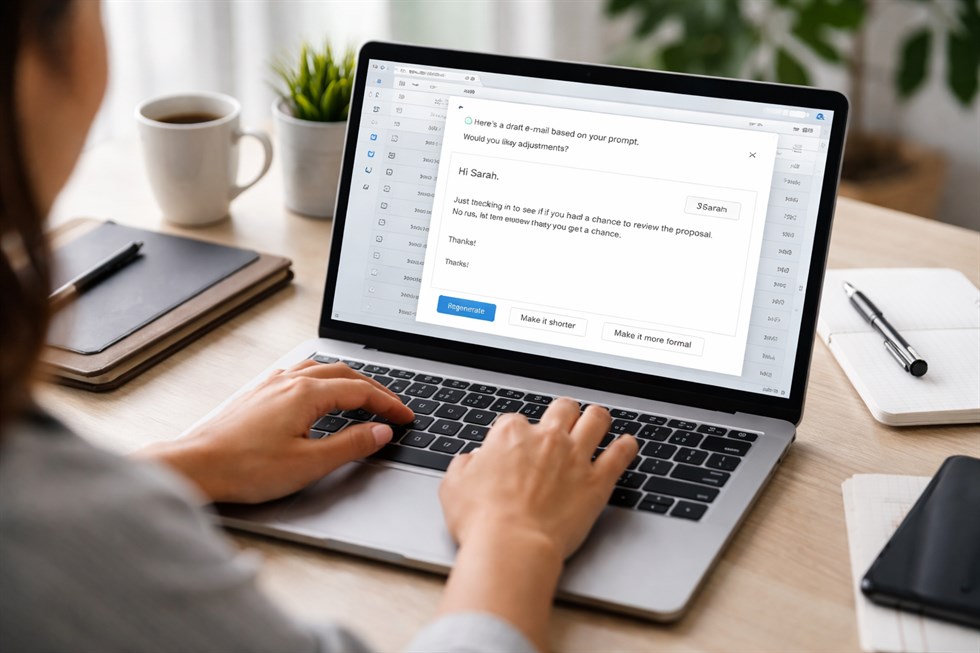
Professional email is one of the highest-leverage places to use AI at work: it can cut drafting time, reduce back-and-forth, and help you communicate more clearly. The risk is obvious too—AI can flatten your voice, make you sound robotic, or “upgrade” your tone into something that doesn’t match your relationship with the recipient. This guide shows a practical workflow to use AI for professional email without losing tone. You’ll get real before/after examples, reusable prompt blocks, and a safety checklist for accuracy, privacy, and trust. The bottom line: AI can help you write faster, but you remain responsible for what the message says, how it lands, and what it commits you to.
Why this matters at work
Email is where decisions get recorded, expectations get set, and relationships get shaped. A slightly off tone can cause real damage: a cold-sounding “quick reminder” can feel like pressure; an overly formal response can make you look distant; a too-casual message can reduce trust. At the same time, email is repetitive and time-consuming—status updates, follow-ups, clarifications, scheduling, and documentation.
Used correctly, AI is best at the parts humans don’t need to suffer through: generating a clean structure, improving clarity, checking grammar, and offering alternative phrasings. Used incorrectly, it becomes a “tone-washing machine” that replaces your voice with generic corporate language.
The most effective approach is not “let AI write the email,” but “use AI to speed up drafting and editing while you control tone, facts, and commitments.” Treat AI like a junior assistant: helpful for formatting and options, not a decision-maker.
What “losing tone” actually looks like
Most tone problems come from the same pattern: you provide a simple sentence, and the AI expands it into something overly polished. The words become technically correct, but the relationship dynamics change. Here are the most common “tone drift” patterns in professional email:
- Over-formalization: “Dear…” “I hope this finds you well…” “Kindly…” (even if your org never talks like that)
- Emotion flattening: warmth disappears; you sound indifferent
- Unwanted urgency: AI adds “as soon as possible” or “at your earliest convenience”
- Confidence inflation: AI turns “I think” into “We will”
- Commitment creep: AI introduces promises, deadlines, or next steps you didn’t agree to
Mini example (tone drift):
Your draft: “Hi Sarah—can you take a look today? If not, no worries.”
Typical AI rewrite: “Dear Sarah, I hope you’re doing well. Would you kindly review this at your earliest convenience?”
What changed: warmth → distance, flexibility → pressure.
A practical workflow: use AI without losing voice
This workflow keeps your tone intact while still getting speed benefits. The key idea: you write the intent, AI helps with structure and polish, and you do a final human review.
- Write the “human core” first (30–90 seconds).
In plain language, write: what you want, why, and what you need from them. Include the tone cues you actually mean (e.g., “No rush,” “Appreciate your help,” “Quick heads-up”).
- Ask AI to structure—not to re-invent.
Your prompt should explicitly instruct: keep tone, keep level of formality, do not add new commitments, do not add facts.
- Choose the best version (or merge).
If AI gives multiple drafts, pick the one closest to your natural style. Don’t be afraid to combine lines from different versions.
- Run a “risk pass” (accuracy, commitments, privacy).
Confirm that names, dates, numbers, attachments, and deadlines are correct. Remove anything that implies a promise you didn’t intend.
- Final human responsibility check.
Ask: “If this gets forwarded to my boss/client/legal, am I comfortable with it?”
If you want a broader system for drafting, editing, and refining workplace documents—not just emails—see Using AI to Draft, Edit, and Refine Professional Documents.
How to use the checklists in this guide
The checklists below are meant to be used as decision support, not as a scorecard. Use them to quickly spot risks (tone drift, accidental commitments, missing context, privacy issues). If a checklist item is a “No,” treat it as a prompt to revise: either add missing context to your prompt, adjust the draft manually, or rewrite the sensitive part yourself. The goal is not perfection; it’s reliable, repeatable quality under real work constraints.
The examples below are control prompts. They are not meant to replace judgment or automate decisions. Their purpose is to constrain AI behavior during specific workflow steps — helping structure information without introducing assumptions, ownership, or commitments.
Control prompt: structure without tone drift
You are helping me draft a professional email.
Constraints:
- Preserve my tone and level of formality exactly.
- Do NOT add new facts, deadlines, promises, or urgency.
- Keep it concise and natural for modern workplace email.
- If something is unclear, add a single [QUESTION] line instead of guessing.
My rough message:
[PASTE YOUR MESSAGE]
Control prompt: “edit only” clarity pass
Edit the email below for clarity, grammar, and structure.
Keep wording as close as possible to the original.
Do not make it more formal. Do not add greetings I didn’t use.
Email:
[PASTE EMAIL]
Control prompt: shorten without changing relationship
Shorten this email by 20–40% while keeping:
- same tone
- same relationship level (peer / manager / client)
- same intent and requests
Do not add new language like “kindly” or “hope you are well.”
Email:
[PASTE EMAIL]
Prompts that preserve tone (by use case)
1) Follow-up emails (without sounding pushy)
Follow-ups are where AI most often introduces unwanted urgency. You want a follow-up that is clear, respectful, and aligned with your relationship. The safest move is to explicitly define the “pressure level.”
Human core draft:
“Hi Max — just checking if you had a chance to look at the proposal. No rush, but if you can share feedback this week, I’ll adjust the timeline.”
Good AI-assisted version (tone preserved):
“Hi Max — quick follow-up on the proposal. No rush, but if you can share any feedback this week, I can adjust the timeline on my side. Thanks!”
Follow-up prompt (pressure control)
Rewrite this follow-up email with the same tone and a “low pressure” feel.
Keep it short. Avoid adding urgency words (“ASAP,” “earliest convenience”).
Do not add new dates or commitments.
Email draft:
[PASTE EMAIL]
2) Saying “no” or pushing back (without being rude)
AI can be helpful here, but it can also over-soften your boundary until it becomes meaningless. Tell the AI what the boundary is and what you’re willing to offer instead.
Human core draft:
“I can’t take this on this week. I can review on Friday or we can shift it to next week.”
AI-assisted version (professional, still firm):
“I can’t take this on this week. I can review it on Friday, or we can move it to next week—whichever works better.”
Pushback prompt (keep boundary)
Turn my message into a professional email that is firm but respectful.
Preserve the boundary exactly. Do not soften it into “maybe.”
Keep it under 90 words.
My message:
[PASTE MESSAGE]
3) Handling misunderstandings (de-escalation)
When there’s tension, “perfect grammar” is not the goal—clarity and calm is. AI can help you remove sharp edges while keeping your point.
Human core draft:
“I think there’s a misunderstanding. I didn’t agree to that scope.”
AI-assisted version (calm, clear):
“I think there may be a misunderstanding around scope. To confirm: I didn’t agree to include X in the current version.”
De-escalation prompt (no blame)
Rewrite this email to reduce tension while keeping the key point intact.
Avoid blame language. Keep it factual and calm.
Do not add apologies unless I wrote one.
Email:
[PASTE EMAIL]
4) Asking for help (without sounding needy)
The “help request” tone is tricky: too soft and it sounds uncertain; too direct and it sounds demanding. The best prompt is to specify the relationship (peer/manager) and the desired tone (confident, appreciative).
Help request prompt (relationship-aware)
Draft a professional email asking for help.
Relationship: [peer / manager / client]
Tone: confident, appreciative, not overly formal.
Include: what I need, why, and a clear next step.
Keep it under 120 words.
Details:
- Context: [PASTE]
- Request: [PASTE]
- Deadline (if any): [PASTE OR “none”]
Real email examples (before → after) you can copy
Example A: Client follow-up on an invoice
Before (human core):
“Hi Anna, can you confirm the invoice status? Want to make sure it didn’t get lost.”
After (AI-assisted, tone preserved):
“Hi Anna — quick check on the invoice status. Just want to make sure it didn’t get lost on your side. Let me know if you need anything from me.”
Example B: Internal status update (short and clear)
Before (human core):
“Update: I finished the draft, waiting on design, then I can send it.”
After (AI-assisted, clean structure):
“Quick update: the draft is done. Next step is design review, and then I can send the final version.”
Example C: Correcting a wrong assumption without sounding defensive
Before (human core):
“No, that’s not what we agreed. The timeline is different.”
After (AI-assisted, factual):
“To clarify, that’s not what we agreed on. The current timeline is [X], and the next milestone is [Y].”
Make AI match your workplace style (instead of generic corporate)
Tone is context. If your company writes short emails with minimal small talk, force that constraint. If your clients expect a slightly warmer style, specify “warm but not fluffy.” Two techniques help a lot:
- Style anchors: give AI 1–2 sentences that represent your tone and tell it to match
- Do-not-use list: ban phrases you hate (“kindly,” “at your earliest convenience,” “hope this finds you well”)
Style anchor prompt
Match my writing style based on these two sentences. Keep the same level of formality and brevity.
Do not use: “kindly,” “hope you are well,” “at your earliest convenience.”
Style examples (my tone):
1) [PASTE 1 SENTENCE YOU WROTE]
2) [PASTE 1 SENTENCE YOU WROTE]
Now rewrite this email in the same style (no new facts, no new commitments):
[PASTE EMAIL]
Common mistakes (and how to prevent them)
- Mistake: letting AI invent context.
Fix: add “If unclear, add a [QUESTION] line instead of guessing.”
- Mistake: accepting AI’s politeness upgrades.
Fix: ban phrases; specify modern workplace style and brevity.
- Mistake: accidental commitments.
Fix: include “Do not add promises, deadlines, or next steps I didn’t state.”
- Mistake: sending without a human review.
Fix: run the “risk pass” checklist below before sending.
If your goal is to write faster across all formats (emails, docs, messages) while keeping your voice and accuracy consistent, pair this email workflow with AI for Faster Writing: How to Write Faster Without Losing Voice or Accuracy. The combination is powerful: speed from structure + quality from constraints.
Limits and risks
AI tools are useful, but they come with predictable risks. If you want “professional email without losing tone,” you must manage these:
1) Hallucinations and invented specifics
AI can confidently add details you never provided: wrong dates, wrong filenames, wrong meeting times, or “as discussed” when nothing was discussed. This is especially dangerous in client email and negotiations.
2) Privacy and confidentiality
Email often includes sensitive information: customer data, pricing, internal conflicts, HR details, legal terms, and strategy. Don’t paste confidential content into tools that aren’t approved for it. When in doubt, anonymize: replace names with roles (Client A), remove numbers, or summarize rather than paste full threads.
3) Tone mismatch across cultures and hierarchies
“Professional” is not universal. What sounds polite in one culture can sound cold or passive-aggressive in another. Your prompt should specify the relationship and intent so the AI doesn’t guess.
4) Authority leakage
AI sometimes writes like it has authority you may not have: “We will approve…” “We decided…” “This is final…” That can create internal friction or legal problems.
A safe rule: AI can help you phrase the message, but it cannot own the decision. Any line that sounds like a promise, a policy, or a commitment should be reviewed and, if needed, rewritten by a human.
Final human responsibility (non-negotiable)
Before you hit send, you are responsible for:
- Accuracy: facts, dates, numbers, attachments, names
- Commitments: what you are promising, agreeing to, or implying
- Tone: how the recipient will interpret the message given your relationship
- Risk: what happens if the email is forwarded or used later as a record
Use this 20-second “send check”:
- Did AI add any new promises or deadlines?
- Is the tone correct for this person?
- Is anything ambiguous that could be misread?
- Would I stand by this message tomorrow?
Final responsibility prompt (pre-send audit)
Review the email below for risks before I send it.
Identify:
1) any added commitments or implied promises
2) any tone issues (too formal, too cold, too pushy)
3) any missing context that could cause confusion
Output a short bullet list of issues, then propose a revised version.
Email:
[PASTE EMAIL]
FAQ
Can AI write professional emails?
Yes—AI can draft and edit professional emails effectively, especially for structure and clarity. The best results come when you provide the intent and constraints, and you review the final message for accuracy, tone, and commitments before sending.
How do I stop AI emails from sounding robotic?
Use constraints: “preserve tone,” “keep it concise,” and ban phrases you dislike. Add a style anchor (two sentences that match your voice) and instruct the AI to match them. Avoid prompts like “make it more professional” without defining what that means in your workplace.
What’s the best prompt to keep my tone?
A strong control prompt includes: preserve tone and formality, do not add facts, do not add commitments, keep it concise, and ask a single question if unclear rather than guessing. This prevents the most common tone drift and hallucination issues.
Is it safe to paste workplace emails into AI tools?
It depends on your company’s policies and the tool’s privacy controls. Avoid sharing confidential, client, HR, legal, or strategic information unless the tool is explicitly approved. When uncertain, anonymize details or rewrite the sensitive part manually.
Should I send AI-generated emails without editing?
No. Always do a human review. AI can introduce subtle tone shifts, incorrect assumptions, or unintended promises. You are accountable for what the email commits to and how it affects relationships.
Can AI help me respond faster without losing my voice?
Yes—use AI for structure, clarity, and alternatives, while you provide the human core message and final review. For a broader speed workflow across formats, combine this approach with a system like AI for Faster Writing: How to Write Faster Without Losing Voice or Accuracy.