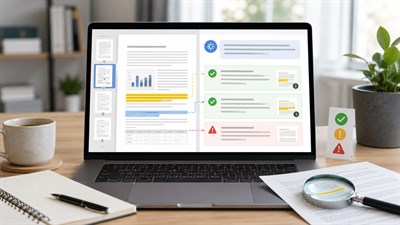
Learning how to extract tables from PDFs with AI can save hours of manual copying, especially when you work with invoices, financial reports, research documents, price lists, operational reports, or supplier files. But getting a table out of a PDF is only half the job. The bigger problem is making sure the extracted table still contains the right rows, columns, numbers, headers, units, blanks, and totals.
An AI-generated table can look perfectly clean while containing a value under the wrong column, a missing row, a duplicated header, a changed decimal separator, or a blank cell that has been “helpfully” filled in. Those errors become much more serious when the data is later used in Excel formulas, financial calculations, reporting, or business decisions.
This guide shows a safer workflow: identify the PDF type, extract the table, preserve the original values, export the data, and verify the result before using it.
How Do You Extract a Table From a PDF With AI?
To extract a table from a PDF with AI, upload the document, identify the exact table or page range, define the output format, and tell the AI to preserve values exactly as written. Ask it not to guess, calculate, normalize, or fill missing cells. Export the result to CSV or Excel when possible, then compare the extracted rows, columns, headers, units, and totals with the original PDF.
- Identify whether the PDF is digital, scanned, or structurally complex.
- Select the exact table and page range you need.
- Define the expected columns and output format.
- Tell the AI to preserve original values literally.
- Handle merged cells, headers, blanks, and multi-page continuation explicitly.
- Export the raw data before cleaning it.
- Validate the result against the source PDF.
Important: A table can look perfectly clean after AI extraction and still be wrong. The most dangerous errors are often invisible: a value shifted into the next column, a missing row, a repeated header treated as data, or a blank cell replaced with an assumed value. Always verify the extracted table against the original PDF before using it for calculations or decisions.
Why PDF Tables Are Easy to Read but Hard to Extract
A PDF page is designed primarily to preserve how a document looks. It does not necessarily store a table in the same structured way as Excel or Google Sheets.
You may see five perfectly aligned columns on the screen, but internally the file may contain separate pieces of text positioned at specific coordinates. An extraction tool then has to reconstruct which value belongs to which row and column.
Digital or Text-Based PDFs
In a digital PDF, you can usually select individual words or numbers with your cursor. That makes extraction easier because the document contains a usable text layer.
However, the text layer does not guarantee that the table structure is preserved correctly. Extraction can still fail when a table contains:
- irregular spacing;
- borderless columns;
- merged cells;
- multi-line descriptions;
- nested or multi-level headers;
- values positioned very close to neighboring columns.
Scanned PDFs
A scanned PDF may look exactly like a normal document, but each page can effectively be an image. Before the table becomes structured data, the system must first recognize the characters and then reconstruct the rows and columns.
This adds another layer of potential errors. A small minus sign may disappear. A zero may be interpreted as the letter O. A decimal point may be missed. A faint percentage sign may not be recognized at all.
Complex Tables
Even a high-quality digital PDF can be difficult if the table contains merged cells, multiple header levels, footnotes, rotated text, subtotals, nested categories, or a layout that continues across several pages.
Before choosing an extraction method, it helps to understand what the AI can actually access inside the file. Our guide to Can ChatGPT Read PDFs? Limits, Scans & Tables (2026) explains why text PDFs, scans, images, and embedded tables can behave differently.
First, Identify What Kind of PDF You Have
Before uploading the file to an AI tool, determine what kind of document you are dealing with. This takes less than a minute and can prevent many extraction problems.
| PDF Type | What You See | Best Starting Approach | Main Risk |
|---|---|---|---|
| Digital PDF | Individual text can usually be selected | Direct AI or table extraction | Broken row or column structure |
| Scanned PDF | The page behaves like one image | OCR or vision-based extraction | Character recognition errors |
| Complex digital PDF | Merged headers, nested columns, irregular layout | AI visual extraction plus validation | Values assigned to the wrong headers |
| Multi-page table | The same table continues onto later pages | Extract all relevant pages together | Duplicated headers or missing rows |
A useful quick test is to try selecting a single number inside the table. If you can select the text normally, the PDF is probably text-based. If the whole page behaves like an image, the document probably needs OCR or visual recognition first.
This is only a practical indicator, not a perfect technical test. Some PDFs contain both text and image elements, while others have damaged or incomplete text layers.
The Safest Workflow for Extracting PDF Tables With AI
The most reliable approach is to separate extraction from interpretation. Your first goal should be to reproduce the source data as faithfully as possible. Cleaning, converting formats, calculating totals, and analyzing the numbers should happen later.
Step 1. Specify the Exact Table
A vague instruction such as:
Extract this PDF.
forces the AI to decide what matters. A 40-page report may contain dozens of tables, captions, charts, footnotes, and repeated summaries.
Instead, define the exact target:
Extract the table titled “Regional Sales” from pages 14–16.
If the table does not have a title, describe it using nearby text, column names, or the page number.
Step 2. Define the Output Structure Before Extraction
Tell the AI how you want the result returned. Suitable formats include:
- CSV for clean raw data and importing;
- Excel-ready rows for spreadsheet work;
- Markdown for quick inspection or use inside an AI assistant;
- JSON for automation or structured processing;
- Word table when the result is mainly intended for a document rather than numerical analysis.
If you plan to sort, filter, calculate, chart, or analyze the data, Excel or CSV is usually safer than Word.
Prompt: Extract the table titled “[TABLE NAME]” from pages [X–Y]. Preserve every row and column exactly as shown in the PDF. Copy values exactly as written. Do not summarize, calculate, correct, infer, or fill missing values. Keep blank cells blank. Return the result as a structured table and flag any cell you cannot read confidently.
The most important parts of this prompt are not the output format. They are the instructions to copy exactly, avoid inference, preserve blanks, and flag uncertainty.
Step 3. Preserve Data Before Preserving Appearance
Many users ask an AI tool to reproduce a PDF table “exactly as it looks.” That sounds reasonable, but visual fidelity and data integrity are different goals.
A table may contain colors, thick borders, merged title cells, indentation, special spacing, and visual grouping. Recreating all of that during extraction can make the result harder to validate.
For most business workflows, the first extraction should prioritize:
- the correct number of rows;
- the correct number of columns;
- exact cell values;
- correct headers;
- blank cells;
- units and symbols;
- footnote markers.
Formatting can be reconstructed after the data has been checked.
Practical tip: If the table will be analyzed later, extract the raw data into CSV or Excel first and recreate visual formatting afterward. Trying to preserve colors, borders, merged cells, spacing, and exact appearance during the first extraction can make data errors harder to detect.
Step 4. Tell AI How to Handle Difficult Cells
A significant number of extraction errors happen because the AI tries to make the data more consistent or readable.
Blank Cells
A blank cell is not automatically zero. It may mean no data was reported, the field is not applicable, or the value was intentionally omitted.
If the source is blank, preserve the blank unless you explicitly know what it means.
Dashes
A dash can represent zero, missing data, not applicable, no change, or simply a visual placeholder. The meaning depends on the source document.
Do not let the AI automatically convert every dash to 0 or N/A.
Parentheses
Financial documents often use parentheses for negative values. For example, (1,250) may represent negative 1,250. However, the safest first extraction is normally to preserve the original notation unless you specifically request conversion.
Percentages
A value such as 8.5% should not silently become 8.5 or 0.085. Those values can behave very differently in a spreadsheet formula.
Currency and Scale
A column containing 125 may mean $125, $125,000, or $125 million depending on the table heading.
Headers such as:
- USD thousands;
- EUR millions;
- Amounts in $000s;
- GBP per unit
are part of the data and must not disappear during extraction.
Decimal and Thousands Separators
Number formats vary by country. For example:
1,250.50
and:
1.250,50
can represent the same number in different conventions. Automatic normalization during extraction can create major errors if the conversion is incorrect.
Footnote Markers
Asterisks, superscript numbers, daggers, and other markers may point to important qualifications below the table. Do not delete them automatically if they affect interpretation.
Prompt: Copy all values literally from the source table. Do not normalize numbers, currencies, percentages, dates, decimal separators, dashes, parentheses, footnote markers, or units. If a cell is blank, keep it blank. If a character or value is uncertain, mark the cell [CHECK SOURCE] instead of guessing.
Step 5. Handle Merged Cells and Multi-Level Headers
Merged cells are common in financial reports and management dashboards.
For example, a table may have a top-level header:
Revenue
with two subcolumns underneath:
2025 and 2026.
A poor extraction may return two columns simply called 2025 and 2026 and lose the information that both refer to revenue. A different extraction may merge both values into one column.
For spreadsheet-ready output, a useful approach is to flatten the hierarchy:
- Revenue — 2025
- Revenue — 2026
But do this only if you intentionally want a flattened schema. If the original hierarchy matters, ask the AI to preserve the multi-level header structure separately.
Step 6. Handle Tables That Continue Across Multiple Pages
Multi-page tables are one of the easiest places to lose data silently.
Common problems include:
- a repeated page header being added as a normal data row;
- a legitimate first row on the next page being removed as if it were a header;
- the last row of one page being joined to the first row of the next;
- each page being returned as a separate table;
- columns changing order between pages;
- subtotals being mistaken for ordinary rows.
Whenever possible, extract all pages that belong to the same table in a single request.
Prompt: This table continues across pages [X–Y]. Treat it as one table. Use the column structure from the first page for all continuation pages. Do not include repeated page headers as data rows. Do not remove any actual data rows. Tell me if the column structure changes anywhere in the document.
Step 7. Export Before Cleaning
Once the raw table has been reconstructed, save or copy it into an appropriate structured format before asking AI to clean or analyze it.
CSV
CSV is a strong choice for simple raw datasets, database imports, automation, and transferring data between tools. It also makes hidden formatting less likely to distract from structural errors.
Excel
Excel is usually better when you need formulas, filtering, multiple worksheets, manual review, conditional formatting, or charts.
Markdown
Markdown works well for smaller tables that you want to inspect directly inside ChatGPT, Claude, documentation, or a text-based workflow.
JSON
JSON can be useful when the extracted information will enter an API, script, database, or automated workflow.
Word
Word is useful when the table is mainly being inserted into a report or document. It is usually not the best destination if the data needs calculations or structured analysis.
How to Check That AI Did Not Lose Important Data
“Check the output” is not enough. You need a repeatable validation process.
1. Compare the Number of Columns
If the PDF has eight logical columns, the extracted version should also have eight unless you intentionally transformed the structure.
Pay special attention to tables where several columns share one parent header.
2. Compare the Number of Data Rows
Row count is one of the quickest ways to detect missing or duplicated data.
For multi-page tables, count only real data rows. Repeated page headers should not be included.
3. Check Every Header
Do not verify only the visible top row. Check multi-level headers, subheaders, units, date periods, categories, and labels that apply to groups of columns.
4. Check Units
A numerical value without its unit can become meaningless or misleading.
Look specifically for:
- USD, EUR, GBP, or other currency labels;
- thousands or millions;
- kilograms, tons, meters, or other measurements;
- percentages;
- dates and reporting periods.
5. Check Totals and Subtotals
If the source contains totals, compare them with the extracted table.
However, do not use matching totals as your only validation method. A subtotal may simply have been copied correctly while one of the underlying rows is still wrong.
6. Check Blank Cells
Look for places where blanks may have been converted into:
- 0;
- N/A;
- a repeated value from the row above;
- an inferred category;
- invented text.
7. Spot-Check Values From Different Parts of the Table
Do not inspect only the first five rows. Compare values from:
- the beginning;
- the middle;
- the end;
- different pages of a multi-page table.
This matters because page transitions and later sections are common failure points.
8. Check Suspicious Values
Review unusually large or small numbers, percentages, dates, decimals, negative values, and cells positioned close to merged headers.
Prompt: Now audit the extracted table against the original PDF. Check the number of columns, row count, headers, units, totals, blank cells, negative values, percentages, decimal separators, and footnote markers. Do not silently fix anything. Give me a separate list of every discrepancy or uncertain cell that requires human review.
This type of AI self-audit is useful, but it is not proof that the table is correct. The same model that made an extraction mistake may fail to notice it during a second pass. Important values still need human comparison with the original PDF.
Real Example: Extracting an Invoice Table
Imagine a purchasing manager receives a 12-page supplier invoice. The document contains company details, payment terms, shipping information, taxes, and a line-item table on pages 8–10.
The required columns are:
| Item | Quantity | Unit Price | Tax | Total |
|---|
A weak instruction would be:
Extract the invoice.
This may cause the AI to mix invoice metadata with line items, summarize descriptions, normalize currencies, or omit rows it considers repetitive.
A better workflow is to identify the exact pages, preserve descriptions literally, keep the currency format, and request CSV or Excel-ready output.
Example: A purchasing manager receives a 12-page supplier PDF containing several tables but only needs the line-item table on pages 8–10. Instead of asking AI to “extract the PDF,” they specify the pages, required columns, currency format, treatment of blank cells, and CSV output. They then compare the row count and invoice total with the original before importing the data into their spreadsheet.
For invoices, verify at least:
- the number of line items;
- quantities;
- unit prices;
- tax percentages;
- currency;
- line totals;
- invoice subtotal and grand total.
Real Example: Extracting a Financial Table
Financial reports create another class of extraction risks because the structure often carries as much meaning as the number itself.
Consider a table with columns for 2025 and 2026 and a heading that says:
Amounts in USD millions
If the value 47.2 is extracted correctly but placed under 2025 instead of 2026, the number itself is accurate while the resulting data is wrong.
Financial tables also frequently include:
- parentheses for negative values;
- footnotes;
- subtotals;
- percentage changes;
- restated historical figures;
- multiple reporting periods;
- units shown only once above the table.
This is why structure must be validated together with the values.
Incorrect structure can be as dangerous as an incorrect number.
How to Extract Tables From a Scanned PDF
A scanned PDF requires an additional recognition step because the table may not exist as selectable text.
The workflow becomes:
Scan → OCR or vision recognition → table reconstruction → export → verification
Modern AI systems can often interpret scanned tables directly, but image quality has a major effect on accuracy.
Common OCR errors include:
0interpreted asO;1interpreted asIorl;- missing decimal points;
- commas interpreted incorrectly;
- missing minus signs;
- missing percentage symbols;
- misread small footnote markers;
- values merged with neighboring cells.
Low-resolution scans, skewed pages, faded printing, handwritten notes, shadows, and compression artifacts can increase the error rate.
Prompt: Extract the table from this scanned PDF using visual recognition. Preserve the original row and column structure and copy each visible value literally. Do not guess unclear characters. Mark uncertain values as [CHECK SOURCE]. Pay special attention to decimals, commas, minus signs, percentages, dates, currency symbols, and footnote markers.
Native PDF vs Scanned PDF: Does the AI Workflow Change?
Yes. The final goal may be the same, but the source information is different.
| Characteristic | Native Digital PDF | Scanned PDF |
|---|---|---|
| Text layer | Usually available | Often absent |
| Character recognition required | Usually no | Yes |
| Main failure risk | Incorrect structure | Incorrect characters plus structure |
| Typical workflow | Extract → structure → verify | OCR/vision → structure → verify |
| Extra checks | Rows, columns, headers | Rows, columns, headers, individual characters and symbols |
A digital PDF lets the system work with existing text and layout information. A scanned PDF requires the system to infer the characters first and the table structure second.
That extra recognition step is why scanned financial or numerical tables deserve particularly careful manual review.
Can ChatGPT Extract Tables From PDFs?
Yes. ChatGPT can extract tables from many PDFs, particularly for one-off tasks where the document is reasonably clear and the user can verify the output.
It can be useful when you need to:
- extract one specific table;
- turn a PDF table into Markdown;
- prepare data for CSV or Excel;
- flatten multi-level headers;
- identify uncertain cells;
- restructure a small number of documents.
More caution is needed with:
- poor-quality scans;
- large multi-page tables;
- complex merged layouts;
- hundreds or thousands of files;
- high-stakes financial, legal, medical, or compliance data;
- production workflows that require repeatable extraction rules and audit logs.
The same structured prompting principles also apply to other AI assistants and document extraction systems. The important part is not the brand of the AI tool. It is how clearly you define the extraction rules and how thoroughly you verify the output.
When a Dedicated PDF or OCR Tool Is Better Than a General AI Assistant
A general AI assistant is often convenient for flexible, one-off document work. But it is not always the best extraction system.
A General AI Assistant Is Often Best For
- one-off extraction tasks;
- unusual tables that need flexible instructions;
- small batches of documents;
- cases where a person will review the result;
- quick transformations into Markdown, CSV-like text, or JSON.
A Dedicated Extraction or OCR System Is Often Better For
- hundreds or thousands of documents;
- recurring invoices with similar layouts;
- automated document-processing pipelines;
- API-based workflows;
- standard forms;
- auditable production systems;
- workflows that require predictable schemas.
Traditional PDF parsing tools can also work extremely well when the PDFs are text-based and structurally predictable. AI is most useful when the layout is inconsistent, the table is unusual, or the extraction requires flexible interpretation.
Common PDF Table Extraction Mistakes
Mistake 1: Asking AI to “Extract the Data”
This is too vague. Define the table, pages, expected columns, and output format.
Mistake 2: Cleaning the Table During Extraction
If you ask AI to extract, clean, standardize, convert dates, fix spelling, and calculate values at the same time, it becomes harder to determine whether a difference came from the source or from the transformation.
Extract first. Clean later.
Mistake 3: Allowing AI to Fill Missing Cells
Missing information is still information. A blank may have a different meaning from 0, N/A, or a repeated value.
Mistake 4: Ignoring Units
A table containing “Revenue: 125” means very different things if the source says dollars, thousands of dollars, or millions of dollars.
Mistake 5: Checking Only Whether the Output Looks Good
A visually perfect table can still contain hidden structural errors.
Mistake 6: Extracting Every Page Separately
This can break a continuous table into incompatible pieces and increase the chance of duplicated or missing rows.
Mistake 7: Using Totals as the Only Validation
A copied total can match the source even when an individual row is wrong.
Mistake 8: Uploading Sensitive Documents Without Checking Privacy Requirements
A technically successful extraction can still be the wrong workflow if the document contains information that should not be uploaded to an external service.
Limits and Risks of AI PDF Table Extraction
AI table extraction is useful, but it is not deterministic transcription.
Typical problems include:
- OCR mistakes;
- shifted columns;
- missing rows;
- duplicated rows;
- invented or inferred values;
- normalized numbers that should have stayed literal;
- merged-cell errors;
- page-boundary errors;
- incorrect headers;
- missing units;
- lost footnotes;
- nearby text being included inside the table;
- problems with very large files;
- inconsistent layouts across pages.
The most dangerous extraction error is usually not a visibly broken table. It is a plausible-looking table containing one or two silent errors.
A completely broken output is easy to reject. A professional-looking spreadsheet with one misplaced decimal or one value under the wrong year can move directly into a report without anyone noticing.
Privacy: Should You Upload Confidential PDF Tables to AI?
Before uploading a business document to any AI service, consider what information the PDF contains.
Potentially sensitive tables may include:
- customer information;
- employee records;
- payroll;
- contracts;
- internal pricing;
- financial statements;
- sales performance;
- medical or personal information;
- confidential operational data.
Before uploading such documents:
- check your organization's data-handling policy;
- check the terms and privacy settings of the AI service;
- remove or redact unnecessary sensitive fields when possible;
- use approved enterprise or internal tools if your organization requires them.
Do not assume that every AI service is appropriate for every confidential document.
A Better Workflow: Extract First, Clean Second, Analyze Third
A useful way to reduce mistakes is to treat PDF processing as four separate stages.
Stage 1: Extract
Copy the source data as literally as possible. Preserve blanks, symbols, units, headers, and unusual formatting that may carry meaning.
Stage 2: Verify
Compare the extracted structure and sample values against the original document.
Stage 3: Clean
Only after validation should you standardize:
- dates;
- currency formats;
- number separators;
- column names;
- category labels;
- missing-value conventions.
Stage 4: Analyze
Once the table has been verified and cleaned, you can safely move to:
- calculations;
- charts;
- comparisons;
- summaries;
- forecasting;
- AI-assisted analysis.
PDF → Extract → Verify → Clean → Analyze
This workflow makes it much easier to understand where an error entered the process.
PDF Table Extraction Checklist
Before Extraction
- Identify whether the PDF is digital, scanned, or complex.
- Select the correct page range.
- Identify the exact table.
- Define the required columns.
- Choose the output format.
- Check whether the document contains confidential data.
During Extraction
- Request exact values.
- Prohibit guessing and silent correction.
- Preserve blank cells.
- Preserve units.
- Preserve currency and percentage symbols.
- Preserve footnote markers.
- Define how multi-page tables should be handled.
- Ask the AI to flag uncertain cells.
After Extraction
- Check the number of columns.
- Check the number of rows.
- Verify all headers.
- Verify reporting periods.
- Verify units.
- Check totals and subtotals.
- Check blank cells.
- Check negative values.
- Check percentages and decimal separators.
- Spot-check values from the beginning, middle, and end.
- Review every uncertain cell manually.
AI Can Extract the Table. You Still Own the Data.
AI can dramatically reduce the amount of manual transcription required to move tables from PDFs into spreadsheets and other structured formats. That does not transfer responsibility for the data to the AI system.
If an extracted table is used in financial reporting, invoices, contracts, pricing, research, compliance, or other important decisions, someone still needs to confirm that the result matches the source document.
The most effective workflow is not to ask AI to replace human verification. It is to use AI to remove repetitive copying while keeping verification focused on the parts where mistakes matter most.
Use AI to reduce transcription work, not to eliminate verification.
FAQ
Can AI extract tables from a PDF?
Yes. AI can extract tables from many digital and scanned PDFs and convert them into structured formats such as Excel, CSV, Markdown, or JSON. Accuracy depends on the PDF quality and table complexity, so extracted values should still be checked against the original document.
Can ChatGPT extract a table from a PDF?
Yes. For many one-off tasks, you can upload a PDF and ask ChatGPT to extract a specific table into structured rows and columns. Results are more reliable when you specify the pages, column names, output format, and instruct it not to guess or fill missing values.
How do I extract a table from a scanned PDF?
A scanned PDF needs visual recognition or OCR before its table can be reconstructed as structured data. After extraction, check numbers, decimal separators, minus signs, percentages, headers, and row alignment carefully because OCR errors can change individual values.
How do I extract a PDF table into Excel without losing data?
Extract the table as structured data first, preserve values exactly as written, and verify the rows, columns, headers, units, blanks, and totals against the source. Once the data is confirmed, import or export it to Excel and apply formatting separately.
Why does copying a table from a PDF break the columns?
A PDF can store text according to its position on the page rather than as spreadsheet-style rows and columns. When the content is copied or extracted, the software may have to reconstruct the table structure, which can cause cells to appear under the wrong headers.
Can AI extract tables that span multiple PDF pages?
Yes, but multi-page tables need extra care. Tell the AI that the pages belong to one table, define the expected column structure, and ask it to exclude repeated page headers while preserving every actual data row.
What is the best format for extracted PDF tables?
CSV is useful for raw structured data and automation, while Excel is usually better for calculations, filtering, review, and multiple worksheets. Word is more suitable when the table is primarily being placed into a document rather than analyzed as data.
How can I check whether AI extracted a PDF table correctly?
Compare the extracted table with the PDF by checking the row and column counts, headers, units, totals, blank cells, negative numbers, percentages, and several cells from the beginning, middle, and end. Review any uncertain values directly against the original.
Should I use AI to extract confidential PDF data?
Only after checking your organization's rules and the data-handling terms of the AI service you plan to use. Confidential financial, customer, employee, legal, or personal information may require an approved enterprise or internal document-processing system.