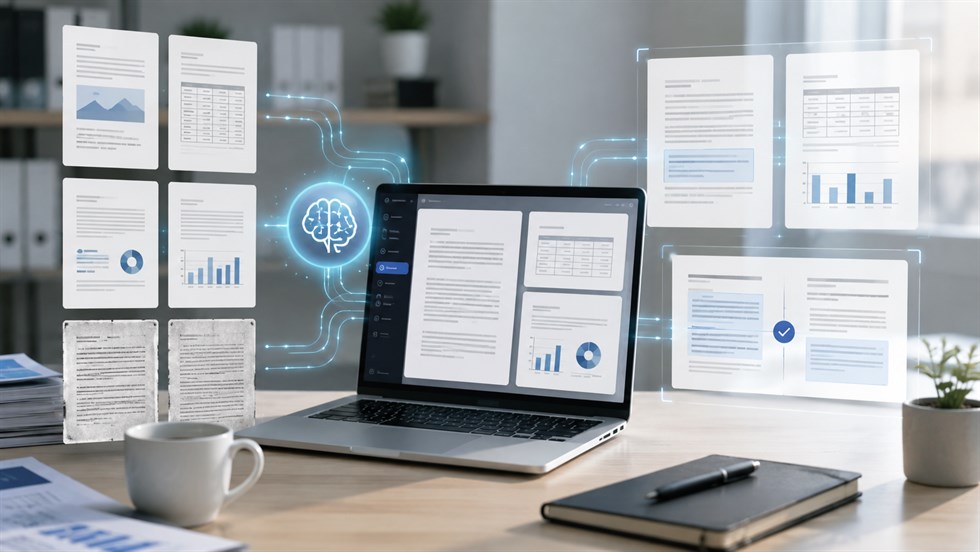
Yes, ChatGPT can read PDFs that you upload and can summarize them, search for information, compare documents, extract specific details, and answer questions about their contents. But “ChatGPT can read PDFs” does not mean it can reliably understand every page, table, scan, chart, or image inside every PDF. The result depends heavily on how the document was created and what kind of information it contains.
This distinction matters at work. If you are summarizing a report, a small extraction error may be inconvenient. If you are checking a contract deadline, comparing financial figures, reviewing a policy, or extracting prices from a supplier table, the same error can affect a real decision.
The safest way to use ChatGPT with PDFs is therefore not to ask only, “Can it open this file?” A better question is: what information can ChatGPT actually access inside this particular PDF, and how should I verify the result?
Can ChatGPT Read PDFs? The Short Answer
ChatGPT can work directly with uploaded PDF files. Once a PDF is attached to a conversation, you can ask ChatGPT to summarize it, locate references to a topic, extract sections, compare it with another document, simplify complicated material, or answer questions based on the document.
That makes PDF analysis useful for many everyday tasks: reviewing a 60-page business report, locating a cancellation clause in an agreement, comparing two versions of a policy, extracting action items from meeting minutes, or turning a technical paper into a short management summary.
The complication is that a PDF is a container, not a single standardized type of content. One PDF may contain clean digital text. Another may consist almost entirely of scanned page images. A third may combine body text, screenshots, charts, tables, diagrams, footnotes, and multi-column layouts.
Those files can look almost identical to a human while being very different for an AI system.
The important distinction: successfully uploading a PDF does not automatically mean ChatGPT has interpreted every page, image, table, or chart correctly. What works depends on how the PDF stores its information and how ChatGPT processes that file.
What ChatGPT Actually Reads Inside a PDF
Before relying on an answer, it helps to know what kind of PDF you are dealing with.
Text-Based PDFs
A text-based PDF contains a digital text layer. A simple test is to open the file and try to highlight a sentence with your mouse. If individual words can be selected and copied, the document probably contains machine-readable text.
These PDFs are generally the best candidates for ChatGPT. Common examples include exported Word documents, contracts created digitally, reports, manuals, policies, research papers, and meeting notes.
For this type of document, ChatGPT can usually perform tasks such as summarization, topic search, comparison, classification, and extraction much more reliably than it can with image-heavy files.
Scanned or Image-Based PDFs
A scanned PDF may look like a normal document while each page is actually an image. If you cannot highlight individual words, there may be no usable digital text layer.
This matters because standard document retrieval is not the same thing as looking at an image. OpenAI currently states that document retrieval on most ChatGPT plans extracts digital text and discards embedded images. PDF Visual Retrieval, which allows ChatGPT to interpret both text and visual elements embedded in a PDF, is currently documented for ChatGPT Enterprise in supported conversations.
Tables, Charts, and Images
Tables create another problem. A PDF is not a spreadsheet. What looks like a clean grid to you may internally be stored as individual pieces of text positioned at different coordinates on a page. When that structure is reconstructed, columns and values can occasionally be associated incorrectly.
Charts and diagrams can be even more important. A report may contain a paragraph saying sales increased while the chart reveals which region caused the increase. If the visual itself is unavailable to the retrieval system, part of the meaning can disappear.
| PDF content | What usually happens | Reliability | Best approach |
|---|---|---|---|
| Selectable body text | Digital text can be extracted | High for general analysis | Upload the PDF directly |
| Simple text table | Text may be extracted, but structure can shift | Medium | Request structured extraction and verify important values |
| Scanned page | There may be no normal digital text layer | Variable | Use OCR or upload the important page separately as an image |
| Embedded chart | It may not be available with text-only retrieval | Plan-dependent | Upload the chart separately or use supported visual PDF retrieval |
| Complex financial table | Rows, columns, or exact values may be misinterpreted | Low to medium for exact extraction | Use XLSX or CSV when available |
| Handwriting or poor-quality scan | Recognition becomes harder | Low | Use OCR and manually verify important content |
If your goal is not just opening a document but building a reliable analysis workflow, see our guide to ChatGPT for PDF Analysis: What Actually Works.
ChatGPT PDF File Limits in 2026
According to OpenAI's current File Uploads FAQ, files uploaded to ChatGPT have a hard limit of 512 MB per file. Text and document files also have a limit of 2 million tokens per file.
Those numbers need context. A 400 MB PDF made mostly of images and a 10 MB PDF containing dense searchable text are completely different analysis tasks. File size tells you whether a file can be uploaded; it does not tell you how easy the document will be to interpret.
How Many PDFs Can You Upload?
OpenAI currently states that users can upload up to 80 files every three hours, although limits may be reduced during peak periods. Free users are currently limited to three file uploads per day. These limits can change, so check OpenAI's documentation if upload capacity is important to your workflow.
How Many Pages Can ChatGPT Read?
There is no reliable universal page limit.
A simple 150-page report with clean text may be easier to work with than a 40-page document filled with scans, nested tables, charts, multiple columns, and poor formatting. The practical result also depends on what you ask ChatGPT to do.
“Find the renewal date” is a narrower task than “analyze this entire 300-page report and identify every important operational risk.”
OpenAI also notes that a file can upload successfully but still be too large, complex, image-heavy, or poorly structured for complete analysis.
Practical check: before trusting a summary of a long PDF, ask ChatGPT a question that can only be answered from the end of the document — for example, the title of the final section and what it says. A successful upload is not proof that your specific task covered every part of the file.
Can ChatGPT Read Scanned PDFs?
ChatGPT can sometimes work with information from scanned documents, but a scanned PDF should not be treated the same way as a normal text-based PDF.
Start with the simplest test: open the document and try to highlight one sentence. If you can select individual words, the PDF probably contains a searchable text layer. If the entire page behaves like one picture, you are probably dealing with a scan or image-based PDF.
For most ChatGPT plans, OpenAI currently documents text-based retrieval for document files. That means embedded PDF images are not automatically equivalent to separately uploaded image inputs. ChatGPT Enterprise has a separate Visual Retrieval capability for supported PDF uploads that can interpret text together with embedded images, graphs, and diagrams.
If only a few scanned pages matter, a practical workaround is to export those pages as clear PNG or JPEG images and upload them separately. For a large scanned document, creating a searchable OCR version first is usually more efficient.
Prompt: “This page comes from a scanned PDF. Read only what is visibly present in the image. Transcribe the text first, mark any words or numbers you are uncertain about, and do not infer missing content. Then summarize the page separately.”
This prompt deliberately separates transcription from interpretation. That makes it easier to spot whether a wrong conclusion came from incorrect reading of the source or from later reasoning.
Can ChatGPT Read Tables in PDFs?
Yes, sometimes — but PDF table extraction is one of the areas where a plausible-looking answer can still contain serious mistakes.
OpenAI warns that ChatGPT may not reliably extract exact values from image-based tables, scanned files, or files with complex visual layouts. When exact values matter, OpenAI recommends providing a spreadsheet or text-based source instead.
The reason is structural. A table in Excel contains explicit rows, columns, and cells. A table inside a PDF may simply contain text fragments positioned visually on a page. The table looks structured to a human, but the underlying file may not preserve that structure cleanly.
This can create errors such as:
- a number being assigned to the wrong column;
- a blank cell shifting later values;
- a multi-line header being interpreted incorrectly;
- rows being merged or separated;
- decimal separators or negative signs being missed;
- tables continuing across multiple pages being reconstructed incorrectly.
Imagine a procurement PDF containing columns for Product, 2025 Price, 2026 Price, and Change. ChatGPT may correctly read “$12,500” but associate it with the wrong year. The number itself is accurate, yet the resulting business conclusion is wrong.
Prompt: “Extract the table on pages 12–14. Preserve every row and column exactly as shown. Do not guess missing cells. Mark uncertain values as [CHECK]. Include the source page for every row. Then provide the result as CSV-compatible data. Finally, compare the extracted totals with any totals printed in the PDF and report inconsistencies.”
For important tables, manually verify at least the column headers, first row, last row, blank cells, totals, percentages, currencies, dates, and decimal separators.
If the table originally came from Excel or another structured data source, use that source instead of reverse-engineering the data from a PDF whenever possible.
What ChatGPT Can Reliably Do With a PDF at Work
PDF analysis becomes much more useful when the task is specific. Here are several realistic workplace examples.
Summarize a Business Report
A manager receives a 70-page market report and needs the key conclusions before a meeting. Instead of asking for a generic summary, ChatGPT can extract major findings, risks, numbers, recommendations, and unanswered questions, then organize them into a one-page briefing.
The important numbers should still be checked against their source pages.
Find Clauses in a Contract
You can ask ChatGPT to locate termination provisions, renewal dates, payment conditions, notice periods, or liability clauses. The safest output includes the relevant page or section, what the clause says, important exceptions, and anything that remains ambiguous.
Example: A procurement manager uploads a 48-page supplier agreement and asks ChatGPT to find termination terms. The useful output is not simply “you can terminate with 30 days' notice.” The useful output is the relevant clause, its page number, the conditions attached to it, any exceptions, and a reminder to check the original agreement before acting.
Extract Actions From Meeting Minutes
Instead of rereading a long set of minutes, ask ChatGPT to create a table with four columns: action, owner, deadline, and dependency. Then verify deadlines and names against the PDF before distributing the list.
Compare Two Policies
Upload an old and new version of a company policy and ask ChatGPT to identify substantive changes rather than formatting differences. This can quickly reveal changed thresholds, responsibilities, deadlines, approval rules, or employee requirements.
The best use of ChatGPT in all four examples is the same: reduce the amount of material a human needs to inspect, without removing the human verification step.
A Safer Workflow for Analyzing PDFs With ChatGPT
A good PDF workflow is more reliable than one extremely complicated prompt.
1. Identify the Type of PDF
Before analysis, determine whether the document contains selectable text, scanned pages, important charts, or complicated tables. This immediately tells you where errors are most likely.
2. Map the Document First
For a long file, do not begin with “summarize everything.” Ask ChatGPT to identify the main sections, their purpose, and where important types of information appear.
This creates a document map before you start drawing conclusions.
3. Analyze the Relevant Sections
Break large tasks into smaller ones. If you need pricing information, focus on pricing sections. If you need risks, analyze the risk section separately. If you need contractual dates, ask specifically for dates and the clauses around them.
4. Ask for Evidence
Request page numbers, headings, or other source references for important claims. Also instruct ChatGPT to flag uncertainty instead of filling gaps with plausible information.
5. Verify Anything That Can Change a Decision
Check the original document whenever the answer involves money, dates, contractual obligations, percentages, totals, regulations, names, deadlines, safety issues, or recommendations with real consequences.
This approach changes ChatGPT from an unofficial source of truth into what it is better suited to be: a fast document navigator and analysis assistant.
Prompt Templates for Reading PDFs With ChatGPT
The prompts below are designed to reduce common failure modes rather than simply generate polished summaries.
Prompt — Reliable summary: “Summarize this PDF for a manager who has not read it. Separate confirmed information from interpretation. Include the main conclusions, important numbers, deadlines, risks, and unresolved questions. Give a page or section reference for every important claim. If information is unclear or unavailable, say so instead of guessing.”
Prompt — Contract or policy search: “Find every section dealing with termination, automatic renewal, notice periods, and cancellation fees. For each item, give the page, section heading, what the document says, and any exceptions or conditions. Do not provide legal advice and do not infer terms that are not explicitly stated.”
Prompt — Completeness check: “Before answering my questions, map the document. List its first section, last section, major headings, page range, and any areas that appear difficult to read or interpret. Tell me explicitly if you cannot verify that the relevant content was available to you.”
You can adapt the same pattern to almost any PDF task: define what information you need, ask for evidence, require uncertainty to be marked, and separate extraction from interpretation.
Where ChatGPT PDF Analysis Can Fail
ChatGPT can produce an answer that is clear, specific, and completely plausible while still being wrong. PDF work creates several recurring risk areas.
Missing Visual Information
A chart, diagram, screenshot, or annotation may contain information that is absent from the extracted digital text. This is especially important in annual reports, engineering documents, presentations exported as PDFs, dashboards, and research papers.
Incorrect Table Structure
Table errors are dangerous because individual values may be read correctly while their relationship to rows or columns is wrong. A convincing answer can therefore survive a quick glance unless you compare it with the original table.
Incomplete Long-Document Analysis
A successful upload is not proof of complete analysis. OpenAI notes that large, complex, image-heavy, or poorly structured files may not be fully analyzed. If a result seems too broad or suspiciously incomplete, narrow the request to specific pages or sections, or divide the source into smaller files.
Hallucinated Details
If information is unclear or missing, a language model may generate a plausible interpretation. Prompts that explicitly say “do not guess” and “mark missing information as unavailable” reduce this risk, but they do not eliminate the need for verification.
Confidential Documents
Do not automatically upload customer data, HR files, confidential agreements, financial records, or other sensitive documents. Check your organization's rules, your ChatGPT product, and current data controls first. OpenAI's policies for consumer ChatGPT and its business offerings are not identical, so the appropriate workflow depends on where and how the document is being processed.
When You Should Use the Original File Instead
Sometimes the best PDF-analysis strategy is not to analyze the PDF.
If you need thousands of exact values, use the original spreadsheet. If you need reliable text from hundreds of scanned pages, run proper OCR first. If you need an authoritative interpretation of a contractual obligation, return to the actual contract and involve the appropriate professional when necessary.
Prefer the original structured source when the task involves:
- exact accounting or financial data;
- large tables with many rows;
- regulatory submissions;
- precise calculations;
- legal obligations or contractual interpretation;
- deterministic data extraction where every value must be correct.
Better input beats a better prompt: if a table originally came from Excel, ask for the spreadsheet instead of extracting it back out of a PDF. If a document is a scan, create a searchable OCR version first. Improving the source often produces a bigger accuracy gain than rewriting the prompt.
Final Human Responsibility
The most useful mental model is simple:
ChatGPT is the navigator and analyst. The PDF is the source of truth. The human remains the decision owner.
If ChatGPT tells you that a contract automatically renews, open the cited clause and check the wording, dates, exceptions, and notice requirements yourself. If it extracts a financial total, compare that total with the source table. If it identifies a deadline, verify the date before putting it into a workflow.
This does not make ChatGPT useless for serious PDF work. The opposite is true. It can dramatically reduce the time required to navigate long documents, identify relevant passages, compare versions, organize information, and create a first analysis.
The mistake is treating that speed as proof of accuracy.
Final rule: use ChatGPT to find, organize, compare, and explain information inside PDFs — not to replace the PDF itself. Any number, deadline, clause, obligation, or conclusion that affects a real decision should be verified against the original document by a human.
FAQ
Can ChatGPT read PDF files?
Yes. ChatGPT can analyze PDFs uploaded directly to a conversation and can summarize, search, compare, and extract information from them. Reliability depends on what the PDF contains. Clean selectable text is generally easier to process than scans, complex tables, charts, or other image-based content.
Can ChatGPT read scanned PDFs?
Scanned PDFs are harder because a page may contain an image rather than a normal digital text layer. Results depend on the available visual-processing features and scan quality. For important scans, create a searchable OCR version or upload the relevant pages separately as clear images, then verify important text and numbers.
What is the maximum PDF size for ChatGPT?
OpenAI currently lists a hard limit of 512 MB per uploaded file. Text and document files are also capped at 2 million tokens per file. These are upload limits, not guarantees that every part of a large or complex document will be analyzed equally well.
How many pages of a PDF can ChatGPT read?
There is no reliable universal page limit. A long PDF containing clean digital text may be easier to analyze than a much shorter PDF filled with scans, charts, tables, or complicated layouts. File size, token count, document structure, and the requested task all affect the practical result.
Can ChatGPT read tables in PDFs?
Yes, but exact table extraction requires caution. Simple text-based tables can work well, while scanned or visually complex tables may produce missing values, shifted columns, or incorrect relationships between numbers and headers. Verify important figures against the original table and use XLSX or CSV when available.
Can ChatGPT read charts and images inside a PDF?
It depends on how the PDF is processed and which ChatGPT plan you use. OpenAI currently documents PDF Visual Retrieval for ChatGPT Enterprise. Other plans use text-based retrieval for document files and may discard embedded images. Important charts can also be uploaded separately as image files for visual analysis.
Why can't ChatGPT read my PDF?
Possible causes include an image-only scan, poor scan quality, complex formatting, file or usage limits, or important information stored mainly inside images and charts. First check whether the PDF contains selectable text. Then isolate important pages, convert a scan with OCR, or provide a cleaner source format.
Can ChatGPT summarize a 100-page PDF?
Potentially, yes. However, asking for one broad summary is not always the safest workflow. Start by asking ChatGPT to map the document and identify its major sections. Summarize important sections separately, then request a final synthesis. Verify key numbers, dates, conclusions, and information taken from tables.
Is it safe to upload confidential PDFs to ChatGPT?
Do not upload confidential material automatically. Check your organization's policies, your ChatGPT product, and current Data Controls before uploading contracts, customer information, HR records, financial documents, or other sensitive data. Consumer and business ChatGPT offerings can have different data-handling policies.