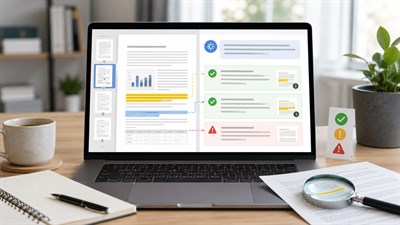
A 40-page PDF rarely lands in your inbox because someone simply wants you to “summarize it.” At work, you usually need to understand what matters, capture the important facts, find decisions and deadlines, identify what needs to happen next, and explain the document to someone who may never read the original. That is why the best way to turn a PDF into notes with ChatGPT is not a single summary prompt. It is a workflow.
Used carefully, ChatGPT can help turn a PDF into structured notes, action items, decisions, open questions, and a concise brief. But each of those outputs serves a different purpose, and combining them too early makes errors harder to spot.
How do you turn a PDF into notes and action items with ChatGPT? Upload the PDF, check what is readable, map the document, create structured notes, extract decisions and action items, build a short brief, and then verify important claims against the original file before using them at work.
A useful PDF workflow does not stop at “summarize this.” First extract what the document actually says, then structure it into notes, decisions, and action items, and only then create the brief. Keeping extraction and interpretation separate makes important omissions and invented details easier to catch.
The Best Workflow: PDF → Notes → Action Items → Brief
The fastest-looking approach is to upload a document and type “Summarize this PDF.” That can be enough when you only want a rough orientation. It is much weaker when the output will influence a meeting, client response, project plan, budget, deadline, or management decision.
A more reliable workflow has six stages:
- Upload and inspect the PDF. Check whether the important text, tables, appendices, and visual information appear to be accessible.
- Map the document. Identify its purpose, major sections, important supporting material, and areas that need closer attention.
- Create structured notes. Separate facts, numbers, recommendations, risks, dates, and unanswered questions.
- Extract decisions and action items. Find what has been decided, what must happen next, and which owners or deadlines are actually stated.
- Build the brief. Compress the information for a specific audience without mixing source facts with unsupported interpretation.
- Verify high-impact details. Return to the PDF and check important numbers, dates, commitments, conditions, and decisions.
This approach requires several passes instead of one large prompt, but that is an advantage. Each intermediate output becomes something you can inspect. If the document map is incomplete, you can fix it before generating notes. If the notes miss a deadline, you can catch that before it reaches the final brief.
Summary ≠ notes ≠ action items ≠ brief. A summary tells you what a document says. Notes organize information for later use. Action items identify what needs to happen. A brief gives a particular person the minimum information they need to understand an issue or make a decision.
Step 1: Upload the PDF and Check What ChatGPT Can Actually Read
If your ChatGPT plan and workspace support PDF uploads, attach the file to the conversation before asking questions about it. But a successful upload does not automatically mean that every important part of the PDF has been interpreted correctly.
A text-based report with normal paragraphs is usually a simpler document-analysis task than a scanned contract, a multi-column research paper, or a report where the most important information appears in charts. Tables, diagrams, footnotes, appendices, unusual layouts, and image-only pages deserve extra attention.
Whether embedded visual information inside a PDF can be interpreted directly can also depend on the ChatGPT plan and the context in which the file is uploaded. For that reason, do not assume that a chart, diagram, signature, handwritten annotation, or scanned page was understood just because the surrounding text was available.
If your document is scan-heavy or contains complex visual material, see Can ChatGPT Read PDFs? Limits, Scans & Tables before building an important workflow around the file.
Before asking for a summary, ask ChatGPT to identify the document title, major sections, page ranges, tables, and any content it may not be able to interpret confidently. If an important section appears to be missing, fix that problem before building notes from an incomplete reading.
Step 2: Map the PDF Before You Summarize It
The first useful output from an important PDF is often not a summary. It is a document map.
If you immediately ask ChatGPT for a polished summary, you may have no easy way to see which parts of the source received attention. A document map forces an earlier, more inspectable step: What is in this file? Where are the important sections? Are there appendices? Does the document contain tables or supporting material? Is anything difficult to interpret?
Start With a Document Map
Read the attached PDF and create a map of the document before summarizing it.
List:
1. The document’s purpose.
2. Its major sections and what each section covers.
3. Important dates, numbers, tables, appendices, or supporting material.
4. Sections that appear especially relevant to decisions or follow-up work.
5. Anything in the file you could not read or interpret confidently.
Do not summarize the conclusions yet. Do not add information that is not in the PDF.
The point of this step is not to make the AI “more intelligent.” It is to make the workflow easier for you to inspect. If the document contains nine sections but the map identifies only seven, that is a reason to investigate before trusting a final synthesis.
A document map is particularly useful for reports with appendices, long proposals, policy documents, research papers, board materials, and PDFs assembled from multiple sources.
Step 3: Turn the PDF Into Structured Notes
Once you know what is in the file, you can turn the PDF into structured notes with ChatGPT. The word “structured” matters. Asking only for “notes” leaves too many decisions about organization to the model.
For real work, useful PDF notes often need to preserve several different kinds of information:
- the purpose of the document;
- key findings or arguments;
- important facts and numbers;
- dates and deadlines;
- recommendations or decisions;
- risks and constraints;
- assumptions;
- open questions;
- details that should be checked in the source.
Use a Structure Instead of Asking for “Notes”
Turn this PDF into structured work notes based only on the attached document.
Organize the notes under these headings:
• Purpose
• Key points
• Important facts and numbers
• Decisions or recommendations
• Risks and constraints
• Dates and deadlines
• Open questions
• Details worth checking in the original PDF
Keep each point concise. Preserve important numbers, names, conditions, and exceptions. If the document does not provide something, write “Not stated” rather than guessing. Add a page or section reference wherever you can reliably identify one.
What Good PDF Notes Should Look Like
Imagine that you receive a 34-page software vendor proposal before a procurement meeting. A generic five-paragraph summary may tell you that the vendor offers implementation, support, and training. That is not yet useful meeting preparation.
Example: A manager reviewing a 34-page vendor proposal does not need 34 pages compressed into five paragraphs. Useful notes would separate price, implementation timeline, dependencies, promised deliverables, exclusions, risks, and unanswered questions so each item can be checked or discussed independently.
A useful output might look more like this:
- Scope: Implementation, data migration, training, and post-launch support.
- Implementation: Proposed 12-week rollout, subject to client-side data access and approvals.
- Pricing: Separate implementation fee and recurring subscription fee.
- Dependencies: Client must provide system access and nominate internal stakeholders.
- Exclusions: Custom integrations outside the listed scope require separate estimation.
- Main risk: Timeline depends on client approvals and data readiness.
- Open question: The proposal does not clearly define the response time for one support tier.
That structure is easier to use in a call, easier to compare with another vendor, and much easier to verify against the original document.
Step 4: Extract Decisions and Action Items From the PDF
Notes describe information. Action items describe work that needs to happen. Keeping those categories separate prevents a common AI mistake: turning every recommendation or observation into a task.
Suppose a project report says, “The security review must be completed before launch.” It may be reasonable to extract Complete the security review before launch as an action item. But if the PDF never names Sarah as the owner or October 12 as the deadline, ChatGPT should not manufacture those details to make the table look complete.
Extract Actions Without Inventing Owners or Deadlines
Extract all decisions, commitments, action items, deadlines, and unresolved questions from this PDF.
Return a table with these columns:
Action or decision | Owner | Due date | Source/page | Status or condition
Rules:
• Use only information stated in the PDF.
• Do not infer an owner from job titles or context.
• Do not invent deadlines.
• If an owner, date, or status is missing, write “Not stated.”
• Keep decisions separate from proposed actions.
• Flag ambiguous items for human review.
An extracted action table might look like this:
| Action or decision | Owner | Due date | Source | Status or condition |
|---|---|---|---|---|
| Complete security review before launch | Not stated | Before launch | Security section | Required before release |
| Provide final data export | Client data team | May 14 | Implementation plan | Required for migration |
| Approve revised rollout schedule | Not stated | Not stated | Project risks | Decision still required |
| Use phased deployment instead of a single launch | Not stated | Not stated | Recommendations | Proposed, not approved |
The phrase “Not stated” is useful. An incomplete table that accurately reflects the source is safer than a complete-looking table containing invented details.
Step 5: Turn the PDF Into a One-Page Brief
A brief is not simply a shorter summary. It is an audience-specific communication tool.
A project analyst may need the detailed notes. A manager may need five findings, two risks, one unresolved decision, and three next actions. A client may need a different version focused on scope, responsibilities, and deadlines.
That means the quality of a PDF brief depends partly on specifying who will read it and what they need to do with the information.
Create a Decision-Ready Brief
Create a one-page brief for a busy manager who has not read the PDF.
Use this structure:
• What this document is about — 2 sentences maximum
• Why it matters — 3 bullets maximum
• Key findings — 5 bullets maximum
• Decisions already made
• Decisions still needed
• Action items and deadlines
• Main risks or constraints
• Open questions
• What should be checked in the original PDF
Base the brief only on the uploaded document. Keep facts separate from your interpretation. Do not invent missing information.
You can adapt the audience line without rebuilding the entire workflow. For example:
- “Create a one-page brief for the CFO deciding whether to approve this purchase.”
- “Create a client-facing brief for someone who needs to understand the implementation responsibilities.”
- “Create a project-team brief focused on deadlines, dependencies, and blockers.”
- “Create an executive brief focused on decisions required this week.”
Specifying the audience changes what ChatGPT prioritizes. It should not change the underlying facts.
Step 6: Verify the Output Against the PDF
A polished brief can still contain mistakes. The most dangerous errors are often not dramatic hallucinations. They are small changes that sound plausible: a wrong number, a missing condition, an overstated recommendation, two separate statements merged into one, or an implication presented as an explicit fact.
Common verification targets include:
- prices and financial figures;
- dates and deadlines;
- names and owners;
- contractual or operational obligations;
- exceptions and conditions;
- approved versus proposed decisions;
- numbers copied from tables;
- claims that depend on a chart or visual element.
Run a Separate Verification Pass
Audit the notes, action items, and brief you created against the original PDF.
For every important claim, number, date, deadline, decision, and action item:
1. Check whether it is explicitly supported by the PDF.
2. Give the relevant page or section when possible.
3. Flag anything that is inferred rather than stated.
4. Flag anything you cannot verify confidently.
5. Identify important information from the PDF that was omitted from the output.
Do not rewrite the brief yet. Return only the verification findings.
Keeping verification separate from generation is useful because you receive an audit-style output instead of immediately receiving another polished rewrite. You can review the problems first, decide which ones matter, and only then request a corrected brief.
A Better Method for Long or Dense PDFs
There is no universal page count at which a PDF becomes “too long” for useful analysis. A 120-page report with simple text may be easier to work with than a 35-page document filled with dense tables, footnotes, appendices, and diagrams.
For a long or complex PDF, avoid asking for a final synthesis immediately. Use a two-pass workflow.
Pass 1: Identify the Relevant Sections
This PDF is too dense for a useful one-pass summary. First divide the document into logical sections and tell me what each section contains. Then identify which sections contain information about [goal]. Do not create the final summary yet.
Replace [goal] with the actual task: implementation risks, pricing, customer research, regulatory requirements, budget assumptions, project delays, or another specific question.
Pass 2: Analyze Only What Matters
Now analyze only the sections relevant to [goal]. Extract the facts, numbers, decisions, risks, deadlines, and action items from those sections. Preserve important qualifications and exceptions. Mark anything that is unclear or not stated.
After reviewing that output, you can create the final brief from the selected evidence. This method is often more useful than compressing an entire dense report into a single generic summary.
Three Real Workflows for Turning PDFs Into Useful Output
The same basic process can support very different document tasks. What changes is the structure of the final output.
1. Vendor Proposal → Comparison Notes and Questions
You receive a 46-page proposal from a potential software provider. The meeting is tomorrow, and your real task is not to “understand the PDF.” You need to decide what to ask.
Map the proposal first, then extract:
- pricing and payment structure;
- scope and deliverables;
- implementation timeline;
- support or SLA commitments;
- client responsibilities;
- dependencies;
- explicit exclusions;
- risks;
- claims that require evidence;
- questions the document does not answer.
The best final output is not an executive summary. It is comparison-ready notes plus a list of questions for the vendor meeting.
2. Project Report → Decisions and Action Items
A monthly project report may contain completed milestones, new blockers, unresolved dependencies, schedule changes, and recommendations from several teams. A normal summary can flatten those categories into a narrative.
Instead, extract them separately:
- completed milestones;
- delayed milestones;
- active blockers;
- dependencies;
- decisions already made;
- decisions still required;
- actions with explicit owners;
- actions where the owner is not stated;
- deadlines;
- items that need escalation.
The final output becomes a meeting-ready action table, not merely a shorter version of the report.
3. Research or Strategy Report → Executive Brief
A long industry or strategy report may contain far more information than leadership needs. Start by defining the decision the brief is supposed to support.
Then extract:
- findings relevant to that decision;
- supporting numbers;
- assumptions;
- risks;
- limitations;
- recommendations actually made by the report;
- questions leadership should discuss.
If you also want ChatGPT to suggest implications, keep them visibly separate from the source:
- What the document says
- Possible implications
That separation matters. An AI-generated implication may be useful analysis, but it should not silently become something the original report supposedly concluded.
One Prompt vs. a Multi-Step PDF Workflow
Not every PDF needs seven prompts. The right workflow depends on what happens after the output is generated.
| Approach | Best for | Main weakness |
|---|---|---|
| “Summarize this PDF” | Quick orientation | Often too generic for real follow-up work |
| Structured notes prompt | Creating a reusable reference | May not clearly identify next actions |
| Action-item extraction | Execution and follow-up | Missing owners or dates can tempt the model to infer details |
| One-page brief | Communication and management review | Compression removes detail |
| Multi-step workflow | Important work documents | Requires several passes and human review |
If you are reading a low-risk report because you want a quick overview, a simple summary may be enough. If the output will be used to make a decision, assign work, quote a number, communicate a client commitment, or manage a deadline, the extra verification steps are usually worth the effort.
Common Mistakes When Using ChatGPT With PDFs
Asking Only “Summarize This PDF”
A generic instruction often produces a generic output. The model has to decide what “important” means, how much detail to keep, and which categories deserve attention. Give the output a job: meeting notes, action items, a decision brief, a risk list, or a comparison.
Mixing Extraction and Interpretation
“Tell me what the report says and what our company should do” combines two different tasks. First extract the source. Then ask for interpretation. Otherwise, the boundary between the document’s conclusions and the AI’s conclusions can become difficult to see.
Letting ChatGPT Invent Missing Owners or Deadlines
A professional-looking action table creates pressure to fill every cell. Explicitly instruct ChatGPT to write “Not stated” when the PDF does not identify an owner, deadline, status, or other requested field.
Trusting Page References Without Checking Them
Page or section references are valuable because they make verification faster. They are not proof by themselves. If the detail matters, use the reference to return to the original file and confirm it.
Ignoring Tables, Charts, and Scanned Pages
Some PDFs communicate crucial information visually rather than through normal digital text. A chart may contain the conclusion. A scanned page may contain a signature or exception. A complex table may lose relationships when converted into plain text. Ask what was recognized and verify visual-heavy pages separately when necessary.
Uploading Sensitive Documents Without Thinking About Data Handling
Technical ability to upload a work document is not the same as organizational permission to upload it. Before using confidential material, consider your company’s AI policy, client agreements, personal data requirements, contract restrictions, and whether you are using an approved account or workspace.
ChatGPT PDF Limits and Risks
ChatGPT can make document work dramatically faster, but PDF analysis still has failure modes that matter in real workflows.
Missing Information
A summary may omit a short paragraph that becomes important later. This is why targeted extraction and a separate omission check are useful for high-impact documents.
Confident Errors
A fluent answer can still contain an incorrect number, misunderstood condition, or unsupported conclusion. Writing quality is not evidence of factual accuracy.
Tables and Visual Information
Information embedded in tables, charts, diagrams, and other visuals may require additional checking. Capabilities for interpreting embedded PDF visuals can vary by plan and upload context, so verify what was actually accessible before relying on the result.
Scanned PDFs
A scan may contain little or no usable digital text. If the output appears incomplete, consider using OCR or providing the relevant pages in a format that makes the content easier to inspect.
Long and Dense Documents
Length is not the only problem. Dense layouts, appendices, repeated sections, technical tables, and competing topics can produce uneven coverage. Map the document and process relevant sections before requesting a final synthesis.
Confidentiality
Do not upload business, client, employee, legal, financial, or personal information simply because a PDF analysis workflow is convenient. Use the tools and environments approved for the information you are handling.
Never treat a polished AI brief as proof that the PDF was read perfectly. The more important the number, deadline, obligation, exception, or decision, the more important it is to return to the source and verify it yourself.
When You Should Still Read the Original PDF
The goal of using ChatGPT with PDFs is to reduce unnecessary reading and organization work, not to eliminate human responsibility.
You should return to the relevant source pages whenever the document contains information such as:
- contract terms or legal obligations;
- regulatory or compliance requirements;
- financial figures or pricing;
- material deadlines;
- safety requirements;
- medical information;
- employment decisions;
- important client commitments;
- conditions, exclusions, or exceptions;
- information that could create significant financial or reputational consequences if it is wrong.
ChatGPT is most useful here as a navigation, extraction, organization, and drafting layer. It can help you identify which three pages of a 70-page report deserve your attention. It should not become the reason you never open those three pages.
A Reusable PDF-to-Brief Workflow
For important work documents, the entire process can be reduced to this checklist:
- Upload. Attach the PDF in an appropriate ChatGPT environment.
- Check readability. Identify scans, tables, charts, appendices, or missing content.
- Map the document. Understand its structure before compressing it.
- Generate notes. Separate facts, numbers, risks, dates, recommendations, and questions.
- Extract decisions. Distinguish approved decisions from proposals.
- Extract action items. Preserve stated owners and deadlines; mark missing details as “Not stated.”
- Create the brief. Adapt the output to a specific reader and purpose.
- Verify facts. Audit important claims against the PDF.
- Review the original source. Check high-impact pages yourself.
- Act or share. Only after the information is ready for real-world use.
ChatGPT can reduce the time you spend locating, organizing, and rewriting information from a PDF. It cannot transfer responsibility for the final decision. If a number, deadline, obligation, risk, or recommendation matters, verify it against the original document before you act on it or pass it to someone else.
FAQ
Can ChatGPT turn a PDF into notes?
Yes. If PDF uploads are available in your ChatGPT plan or workspace, you can attach a document and ask for structured notes. For better results, specify the categories you need instead of asking only for a summary. For example, request key points, numbers, decisions, risks, deadlines, open questions, and source references. Important information should still be checked against the original PDF.
Can ChatGPT extract action items from a PDF?
Yes, if the actions are stated or clearly described in the source. Ask ChatGPT to separate decisions, commitments, proposed actions, deadlines, and unresolved questions. It is important to tell it not to invent missing owners or due dates. If a field is absent from the PDF, the output should say “Not stated” rather than infer a detail that may be wrong.
How do I get ChatGPT to summarize a long PDF?
For a long or dense PDF, start with a document map instead of requesting the final summary immediately. Ask ChatGPT to identify the major sections and the sections relevant to your goal. Analyze those sections in more detail, extract the important facts and decisions, and only then create the final synthesis. This makes omissions easier to notice than a one-pass summary.
Can ChatGPT read a scanned PDF?
It depends on the file, the available text, and the ChatGPT features being used. A scanned PDF may contain little usable digital text, and embedded visual processing can vary by plan and context. If the result appears incomplete, use OCR where appropriate or provide the relevant pages in a format that makes the text or image content easier to inspect.
Can ChatGPT extract tables from a PDF?
ChatGPT can often work with information from tables, particularly when the table content is available as readable digital text. Complex layouts, merged cells, visual relationships, or image-based tables can be more difficult. For any table containing important prices, dates, calculations, or commitments, compare the extracted result with the original table before using the data.
How do I make a one-page brief from a PDF with ChatGPT?
First create structured notes, then tell ChatGPT who the brief is for and what that person needs to know. A useful structure includes the document purpose, why it matters, key findings, decisions already made, decisions still required, action items, risks, and open questions. Tell ChatGPT to use only the source document and run a separate verification pass afterward.
How accurate are ChatGPT PDF summaries?
They can be useful, but they should not be assumed to be complete or error-free. A summary can omit details, misread a number, lose an important qualification, or interpret a visual element incorrectly. Accuracy also depends on the document format and the task. Verify high-impact claims, dates, financial figures, obligations, and decisions against the original PDF.
Is it safe to upload a work PDF to ChatGPT?
There is no universal answer because it depends on the document, the account or workspace being used, and your organization’s requirements. Before uploading confidential work files, check internal AI policies, client agreements, privacy requirements, contract restrictions, and whether the environment is approved for that information. Convenience should not override confidentiality or data-handling rules.